Pages

Jumat, 30 Desember 2011

Apps for Professional Development

If you have not had a chance to read through this list put together by John Sowash than do yourself a favour and spend some time today working out which of these would benefit your daily workflow. John has done a spectacular job putting together this list for an article he wrote for Edreach. Checked out their website for some great articles and resources. 

They have a fantastic mission statement.
Ed Reach provides a platform for passionate, outspoken educators- aiming to strengthen their voices by highlighting innovation in the field of education, through reporting critical educational news, providing commentary, and offering criticism of the educational issues of the day.


Kamis, 29 Desember 2011

Continually Updated iOS Tips and Tricks


iOS 5 is an incredibly complex operating system, filled with hundreds of innovative, undocumented little touches, just waiting for you to stumble on. Here's an updated, ever-constant filling of tips and tricks to help you master Apple's latest iOS to the fullest. Keep checking back and be sure to bookmark us for future reference.
The guys over at MacLife.com  have put together a continually updating article that offers tips and tricks for using iOS 5 on your iPad, iPhone or iPod. These are good, simple tips that are really about improving the use of your iOS device. This might be an article that you check on a regular basis to keep you up to date with iOS discoveries or updated features.


Vacation, Montessori Style

This week was our vacation week, and it was full of relaxation.  The girls had mild pneumonia and ear infections, so we kept the week calm.  I didn't take too many photos, since someone was always in my arms.  

Happy New Year to all!  May 2012 bring peace, health, and joy!


Peanut Plays in her room while sister naps

Pumpkin LOVES mud.  Real girls do, you know.

Our pencils, sharpened by the girls

This is first thing in the morning, see the sun just poking in?  Bean couldn't wait to attack the cursive sandpaper letters.


Peanut adores the mini knobbed cylinders.  She was concentrating so hard, she didn't even notice me.  

Rabu, 28 Desember 2011

Should we use Parental Controls for the iPads in the Classroom


I teach in a high school and we have always made it a policy at our school to give students access to all the tools on their iDevices. This was originally meet by concern from a couple of staff and some parents but the reality was that once the students were given complete access they no longer saw the need to hack into their machines to get it.  Many of the students lost interest in the tools we were most afraid of them having.

The reality of our situation was that without the control of their own devices we would not have achieved the creativity or sense of ownership that many of our students have now developed with their own learning. The students became the driving force behind a fundamental pedagogical change that occurred at our school after the implementation of the 1:1 program.

But....I understand that not everyone is able to or comfortable with giving their students this amount of autonomy. This is especially true of primary school K-6 students.  Some element of control would alleviate many concerns from teaching staff and parents. 

What is available if we want to maintain some control on content that our students access on the iPad?

Here are a list of some apps available to do just that but I have also included some instructions below for setting some Parental Controls directly on your iPads. These were on based on an article put together by the folk over at ikidapps.com.

Apps:

Mobicip: $5.40 AU
Simply set your filtering level at Elementary, Middle or High School and Mobicip automatically applies filtering standards used by K-12 school systems. The filter uses strict safe search, categorization, and intelligent real-time content analysis. It is expressly designed by Mobicip to provide a safe, secure and educational Internet and YouTube (new) for families and school-age children.

http://itunes.apple.com/au/app/mobicip-safe-browser/id299153586?mt=8


K9 WebProtection Browser: FREE
Free Parental Controls for iPad is a safe web browser for your family. Backed by Blue Coat Systems' leading web filtering and content control technology, your children will receive the same protection trusted by Fortune 500 companies around the world. You will want to disable Safari and make K9 Web Protection Browser your default browser.

http://itunes.apple.com/au/app/k9-web-protection-browser/id407657840?mt=8


Lightspeed Mobile Filter: FREE
Lightspeed Mobile Filter for iOS ensures safe, monitored Internet access on school-distributed iOS devices. The Lightspeed Mobile Filter for iOS devices is a browser application that regulates and monitors web browsing when used in conjunction with Lightspeed Systems Internet filters for schools. Provides: Internet filtering, Thumbnail image blocking and Bookmarks.

http://itunes.apple.com/au/app/lightspeed-mobile-filter/id367422068?mt=8


Kids Safe Web Browser: $1.99 AU
This is not a browser meant to stop older children. This app is meant for younger children to learn how to use a browser and provide them with a safe browser to use. It is meant to teach your child how to use a browser for the first time and give you some peace of mind knowing they wont see something inappropriate.

http://itunes.apple.com/au/app/kids-safe-web-browser/id398093566?mt=8#


SafeWeb for iPad: FREE and with Paid Upgrade
Safeweb is your simple "kid safe" web browser for the iPad. You decide what web sites are allowed. Enter your passcode for any new sites and they will be remembered for future visits. The innovative "Learn mode" allows the browser to quickly add many sites to the allowed list just by visiting them.

http://itunes.apple.com/au/app/safeweb/id417563423?mt=8


iWonder Pro: FREE
The ultimate parental control web browser with controls exceeding anything available today! Utilizing advanced GPS technology, you can see exactly where your kids are when they surf the web, with history tracking. ALL adult sites are blocked automatically, FREE adult website blocking for life... no matter what, adult sites are blocked free of charge.

http://itunes.apple.com/au/app/iwonder-pro/id393932990?mt=8


SurfBalance: $5.49 AU
SurfBalance combines a fun, full-screen mobile web browser with unique parental control features that go beyond website filtering to help kids develop better web usage skills. With SurfBalance, you can guide, limit and verify your child’s travels on the web while using an iPad. SurfBalance helps parents guide young web users by providing a catalog of over 1000 kid-friendly sites.


Setting the Parental Controls directly on the iPad Settings:
Keeping kids safe is a top priority for parents and educators. Although the iPad is a cool device and great learning tool, iPad parental controls are essential to ensuring that children are not able to access inappropriate content, or accidentally run-up iTunes bills.
Fortunately, setting iPad parental controls is a quick and easy process that will provide peace of mind for parents and educators and safe access to Apple’s coolest technology.
How to set iPad parental controls:
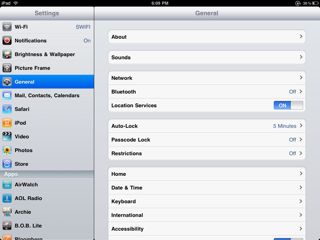
1. From the iPad’s home screen, select the “Settings” icon.
2. Touch the “General” option from the left side of the settings screen.
3. Locate the “Restrictions” setting option within General and set to “On”.
IPad Controls 1
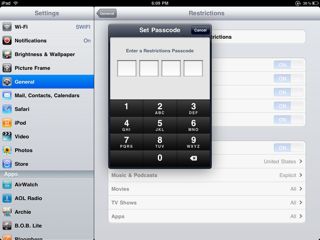
4. Press Enable Restrictions then choose a 4 digit pass code to lock the iPad parental control settings. Ideally, this should be a number that’s easy for you to remember but not so obvious that older kids will be able to figure it out in a few guesses. 


Unfortunately, if a pass code is forgotten retrieval may mean having to re-configure your whole iPad.
IPad Passcode
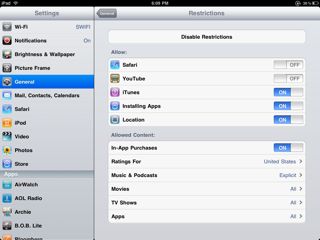
5. After choosing a passcode, you will be given access to the “Restrictions” page. Set each section of restrictions, such as “YouTube,” “Safari,” “iTunes,” and the like to meet the limitations that you feel are appropriate for your students. These items may be disabled completely, or limited based on the ratings of material.
IPad controls 3
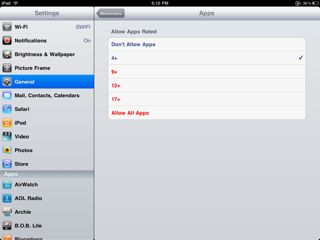
6. Select “Apps” in the “Allowed Content” section of the Restrictions page and select the ratings of apps that you consider appropriate for download. You may also choose to disable any in-app purchases completely by selecting “Don’t Allow Apps” to avoid unexpected iTunes bills.
IPad controls 4
7. Once your iPad parental control settings are complete, press the home button to return to the main screen. Settings can be changed at any time by accessing “Restrictions” via the “Settings” menu and entering your passcode.
Regardless of the settings that you choose, remember that iPad parental controls are no substitute for adult supervision. Take the time to talk to your students about what to do if they accidentally access inappropriate content and always supervise your student’s iPad use.


Whose Race to the Top?


A new investigation into the charter schools run by Joe Biden's brother Frank, a self-proclaimed "PT Barnum" of charters, raises interesting implications for the Obama Administration's educational policy known as Race to the Top.

As many, including the U.S. Department of Education which oversees RTTT, have pointed out, states that embrace charter schools are winning the race. As DOE materials put it, "President Obama has called upon states to encourage the expansion of charter schools. A network of innovative and high-achieving charter schools can be an important part of a state's school reform effort. However, charter schools are facing significant obstacles to expansion in too many states."

Is this an entirely disinterested reform effort? Many others have raised concerns about the neoliberalism inherent in RTTT, which shapes the dominance of private business interests over common public goods. For example, in a recent article two researchers from Occidental College document the actions taken by Arne Duncan in Chicago, where Renaissance 2000 threatened participatory democracy by excluding parents from key decisions including the closing of schools, an action that the Consortium for Chicago School Research did not find to be beneficial for student outcomes.

The "unintended" consequences of capitalizing school markets are numerous, but one also has to wonder about the intended consequences as well. As it turns out, Vice President Biden, a guy I have generally liked, has family interests in the charter school movement. This most recent investigation, which in full disclosure I will say was conducted by my sister Lisa Rab, makes me further wonder whether the Race to the Top is really about the 99% of America's students-- or truly about advancing the advantages of the 1%. As usual.

PS. Valerie Strauss of the Washington Post also covered this story, on December 10, several weeks after Lisa began writing about it.

Senin, 26 Desember 2011

Are We Really Evaluating the Use of iPads in Our Classroom

One of the things we need to be doing as educators is to critically evaluate the resources and learning experiences that we provide for our students. This is even more important when we are spending vast sums of public money to implement new or innovative hardware devices into our schools. At the moment only short term studies have been released showing the benefits or not of using 1:1 tablet programs.  There are few that are easily accessible to teachers or that outline specific strategies for implementing tablet programs.

It would good to create a collection of these if people are aware of them. Send them through and I will add them to this article. These could even be cited when making the argument for implementing such programs.

Here are some of references to existing research that I found interesting.

http://ipadpilot.wordpress.com/2011/10/24/research-and-evaluation-a-work-in-progress/

http://www.leishman-associates.com.au/ascilite2011/downloads/papers/Brand-full.pdf

http://www.nngroup.com/reports/mobile/


This site has a collection of links to what other research institutions are also doing:
http://researchguides.dartmouth.edu/teachingwithipads


Articles:
http://thejournal.com/articles/2011/09/06/ipads-make-better-readers-writers.aspx

http://campustechnology.com/articles/2011/02/02/evaluating-the-ipad-for-education.aspx

http://www.convergemag.com/classtech/iPad-Studies-Abilene-Christian.html

This issue will become more of a requirement as legislators start to ask educator to justify continued financial support of such programs and as parents and the community ask to see evidence of the benefits of these changes to their children's schooling. Some people have started this process.


As a start we should be evaluating the apps we chose to use with our students. Kathy Schrock's has started to put together a couple of scaffolds for doing just this. Her site, always a source of fantastic resources has a great section on iPads.

Another fantastic is resource is Apps+Taskonomy. The guys at Balancedtech have put together this PD Session that could be completed by anybody in their own school. They have hyperlinked all the necessary resources into the PD material. They also have a plethora of iPad resources on their site.


Another interesting reflection can be found at The Staffroom HQ. Written by Aiden Levy a Yr 6 teacher. He loves to constantly evaluate his programs and lessons in order to increase the integration of technology and at the forefront of his mind is the iPad and its application in the classroom. He has also provided a sample Evaluation Form


Jumat, 23 Desember 2011

Creating an Appropriate App Collection within your School Budget

Collections of Apps can be expensive. How do you locate appropriate apps at a reasonable price or better still for FREE. Here are some really easy ways to locate apps that might be useful in your classroom.

Developers change the prices of apps all the time to get them into the Top 100 or because of upgrades. Some iPad apps were originally only iphone apps that were free but could be used on the iPad. Gradually these have have been upgraded for the iPad - hence the price changes. As you can imagine it is very difficult to keep up with each and every price change in itunes. The best way of cause is to let someone else do all the work and then get them to send it to you. So the first thing I would suggest is locating a couple of sites that you find useful and then subscribing to their RSS feed.
Websites:
Lots of websites have been set up as a way of locating appropriate apps. Some of these even have FREE search categories. Others allow you to create wish lists and then they notify you if price drops occur. I like to check the Best of Lists Free Apps every now and again to see if any worthwhile apps have been released. Check these out;


Apps:
There are even Apps that have been designed to locate FREE apps for the iPad. These Apps are free to purchase and they are regularly updated and make the experience of locating apps even easier. Some of these apps are designed to find apps that are in the categories you designate and then let you know if price drops have occurred. Other are more simply in the tasks they perform.

  Twitter:
There are also numerous twitter accounts that specialise in app tracking and some of these you might find useful to follow. I must admit I cut back on these after I had my initial set of apps. I find I do not want my twitter account flooded by just a couple of feeds. Pick the ones that work for you.

@ipadappsales
@FreeAppsOrg
@AppAdvice
@iPadApp_Sale
@AppsforiPad
@AppClimb
@FreeAppsOrg


@freeappalert
@AppPicker


@freeappaday
@iPadApps_


@BrainGameApps

Twitter Hashtags:
Sometimes it is handy just to search specific Hashtags when you are looking for apps. Here are a list of # that I have found useful in the past. Not all of these are iPad app specific but they will often have reviews or news of new releases or free apps.

#ipadapps
#edapps
#edtech
#ipaded
#mlearning
#ipad
#ipadchat
#slide2learn
#iear

You also have numerous blogs about Apps, too numerous to mention here. Many of these have been mentioned on my blogsite - Appsineducation